LeadVelo’s “IP Discovery” feature identifies companies who visit the site and meet preset criteria (such as spending at least 30 seconds on the site), and adds them to your contacts dashboard as anonymous records with their company name (see screenshot below). You’ll also receive an email notification identifying these companies.
All that happens automatically – but there are 2 crucial manual steps that need to be taken.
- Identify who the person is & update their info in LeadVelo
- Add them to your LeadVelo automation workflow so they receive automated email outreach
Example of anonymous leads in the dashboard:

Step 1
- Review the companies LeadVelo has found. Some may not be a good fit – feel free to delete them from the dashboard. Others will be well worth reaching out to. In that case, manually use any tools you feel comfortable with (Google, LinkedIn, etc) and identify the best person(s) to reach out to.
- Update the anonymous record to include the name, email, and phone number (optional) of the individual you’d like to contact. You can create additional contact records if you would like to reach out to more than one person from that company.
Step 2
- Once the record(s) have been added/updated, you may enter the contact into your automated outreach workflow. Note – you may have several potential workflows to choose from. Your Turchette LeadVelo team will help you with your specific custom scenarios and provide information for how to trigger these workflows most efficiently. In some cases, this step may even be automated!The default method for adding a contact to a workflow is just a matter of a couple clicks.
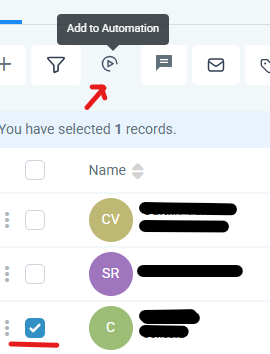
- From the contacts dashboard – click the contact & click “Add to Automation”:
- In the “Add to Automation” screen, type an action name (it can be anything you’d like) and select the workflow.
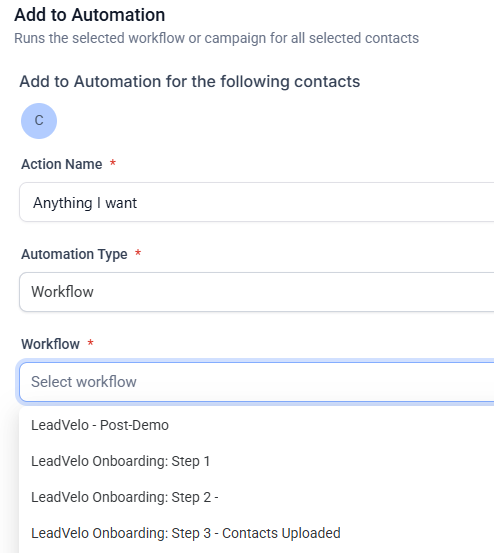
- You can schedule the workflow to begin at a specific time, or just let it begin immediately (this is most common). Then click “Add to Automation” and you’re done!
- From the contacts dashboard – click the contact & click “Add to Automation”: